Wednesday, 5 November 2014

Creating Patternings Using Scratch


Patterning is easy if you know how to use the 'Repeat' function. All you need is a core and repeat multiple times. Follow this link to learn how to create a simple pattern in Scratch.

Sunday, 12 October 2014

Rebooting Pi Club

This week we started assembling the Raspberry Pis. My helpers were very eager to learn how the hardware works together to create a computing device.

Saturday, 31 May 2014

Pixel Art - - Coded

We have been exploring how to use Python code to place the blocks and create digital works of art. By placing blocks to 3 coordinates, x, y, z, we can display 2-D graphics in a 3-D world.

Thursday, 1 May 2014

Wednesday, 2 April 2014

A successful teleport in Minecraft

Today we attempted and succeeded at a successful teleport in Minecraft Pi. While the actual code was easy, it was the minor details that we had to debug.


What we learned today was that you need to put the python program that you have created, in our case, teleport.py, into the following folder mcpi/api/python

If it is not in the correct folder, then it will not be able to communicate with the game and you will get an error message (like we did....10 or so times).

Where in Minecraft do you want to teleport to?


Friday, 28 March 2014

Programming with Python and More

Want to start learning a new computer language? You can follow these tutorials to practice using the programming language called Python.

If you want to try some different ways of programming, check out these options.

Monday, 24 February 2014

Pixel Art - How to

Check out our pixel art project here. It is quite easy to do...especially with Minecraft!

Project Document

Saturday, 22 February 2014

Pixel Art!

Up close, it is hard to tell what it is...but if you back up,  it becomes clear. 
These creations were the work of one of our grade 8 members of the Raspberry Pi Club.

Saturday, 8 February 2014

Mathcraft: Integrating Minecraft into the Math World


Check the activity here.

Lots of planning before construction begins in Minecraft. It is exciting to hear students say they want to stay in at recess to work on their area and perimeter assignment. Math is fun!


Friday, 31 January 2014

Changing Minecraft World Names

My students and I have been somewhat frustrated by the lack of a world naming option. Sometimes students would enter the wrong world or have so many on one Pi that it was impossible to find the one with that Math project on it.

So,  with a bit of research we came across these steps.

1. Open up ‘File Manager‘ and click ‘View‘. Then tick the box that says ‘Show Hidden‘.
Tons of folders will now appear in your user dictionary (Default is ‘pi‘). One will be called ‘.minecraft‘, open it.

2. Open the ‘games‘ dictionary, then the ‘com.mojang‘ dictionary and finally the ‘minecraftWorlds‘ dictionary.

3. In here will be several folders. They will be named ‘world‘, ‘world-‘, ‘world–‘ etc. To rename the world, simply just right-click on one of these folders and click ‘Rename‘. Then just type what you want the world to be named!

Saturday, 18 January 2014

Coding Music

One of the first activities that I put together for my students was related to music. I wanted my students to gain some familiarity with musical concepts and the Raspberry Pis. To do this, I combined the Raspberry Pi computers, Kano OS and Sonic Pi to achieve this goal.

Check out the Google Presentation (printable) that I used to start it all off.

Raspberry Pi + Sonic Pi + Kano OS = Music!


Saturday, 4 January 2014

Where to buy the Raspberry Pi and other accessories

Rasberry Pi Model B with NOOBS SD Card (pre-installed)

There seems to be a lot of places to purchase the Raspberry Pi online. The supplier that I selected was Newark Element 14. They have both the Model A and Model B Pi as well as various kits. I selected the Raspberry Pi 8GB Bundle. Not only does this come with the Model B, but it also has an 8 gig (Class 4) SD card loaded with NOOBS. For the extra $6.20, the SD Card is worth it.

Shipping was quick! I ordered my first set of Pis on a Sunday and they arrived by Tuesday.

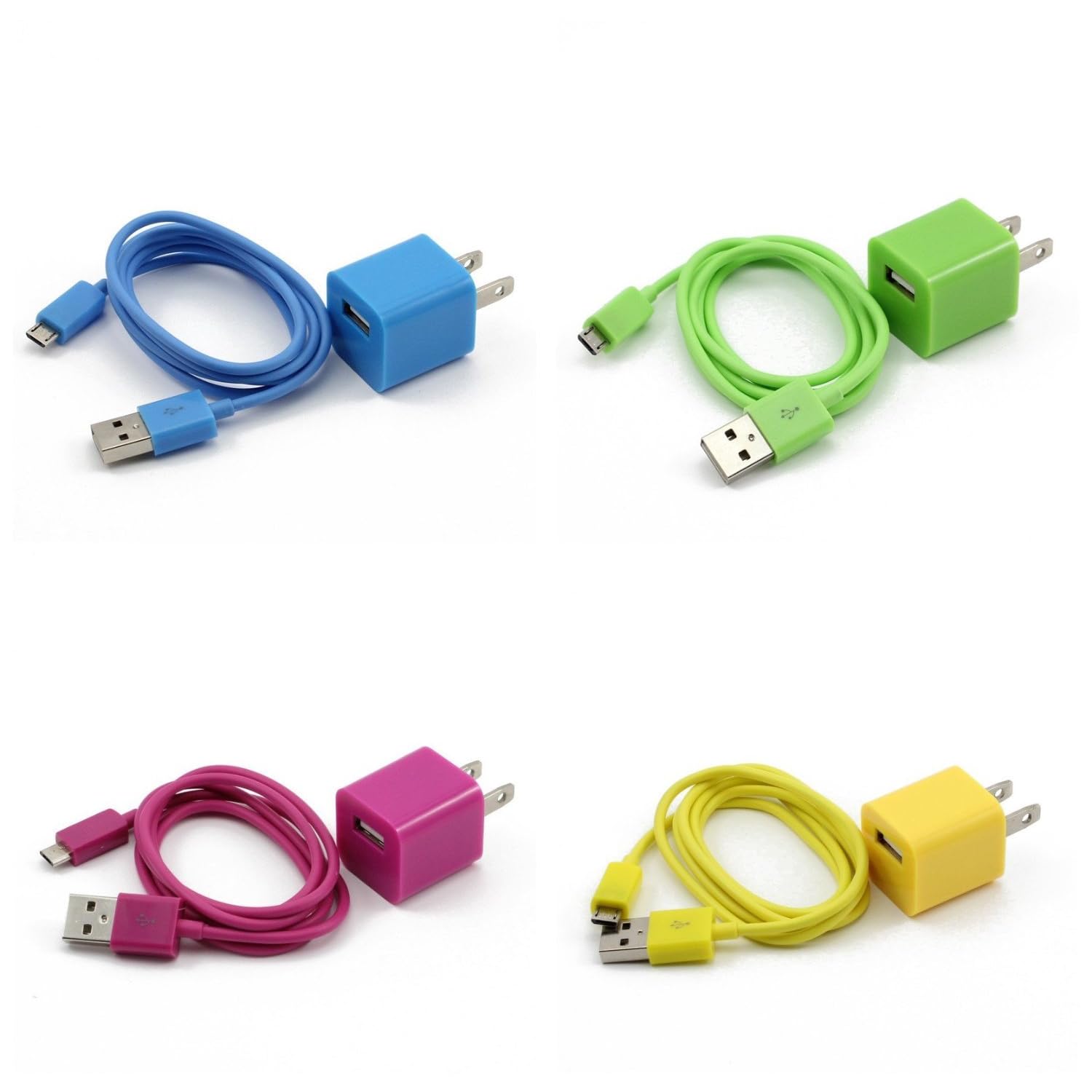
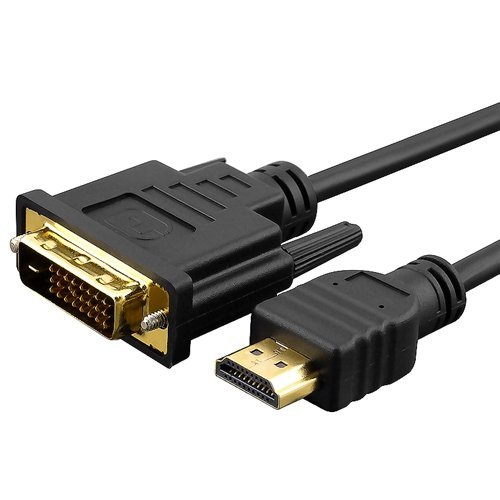
The problem is that you need more accessories to get the Pi up and running. I had the monitor, keyboard and mouse donated. I still needed a micro usb power supply (5V/700mA) and an HDMI to DVI adaptor for the monitor. Newark sold both these products, but I found the prices a little too high for my liking (since my goal was to buy as many Pis as possible). I decided to shop on Ebay.com and Amazon.ca for the remaining accessories.


Both of these items were available for about $1-$10 each with free shipping. Pretty amazing price, except it can take up to 20 business days to arrive. Some suppliers ship faster, but it usually means that there will be an increase in price.

One note of caution, be careful to select a power supply that clearly indicates the power output. I accidentally bought some power supplies that did not quite work correctly. This lead to the Pi rebooting constantly. Luckily for me, I didn't spend too much money! Since we are so new to this, there will be lots of trials and many errors. That is ok!